How to Make a Custom 2027 Wall Calendar from Your Own Photos or AI Art
Make a 2027 wall calendar with a different photo or AI picture on every month, check each page is sharp, and order a single copy. Step by step, with real screenshots.
On this page
A calendar is one of the few things people look at every day for a whole year. Made from your own photos, it is also one of the easiest presents to get right: the grandparents get the grandchildren, a friend gets the trip you took together, and nobody already owns it.
This guide shows how to make one with a different picture on every month, from photos on your phone or pictures you make with AI, and order a single copy. Everything below was made for this article: twelve AI pictures, one calendar, and a real product photo from the printer.
What you get
| Wall Calendar (2027) | |
|---|---|
| Sizes | A4, 8.3″ × 11.7″ (21 × 29.7 cm), or 11″ × 17″ (28 × 43 cm) |
| Pages | Cover + 12 months |
| Paper | 271 g/m² |
| Binding | Silver metal wire, with a hanger |
| Weeks start on | Monday or Sunday, you choose |
| Price | about $15.25 (A4) or $24.20 (11″ × 17″), plus shipping |
| Minimum order | One |
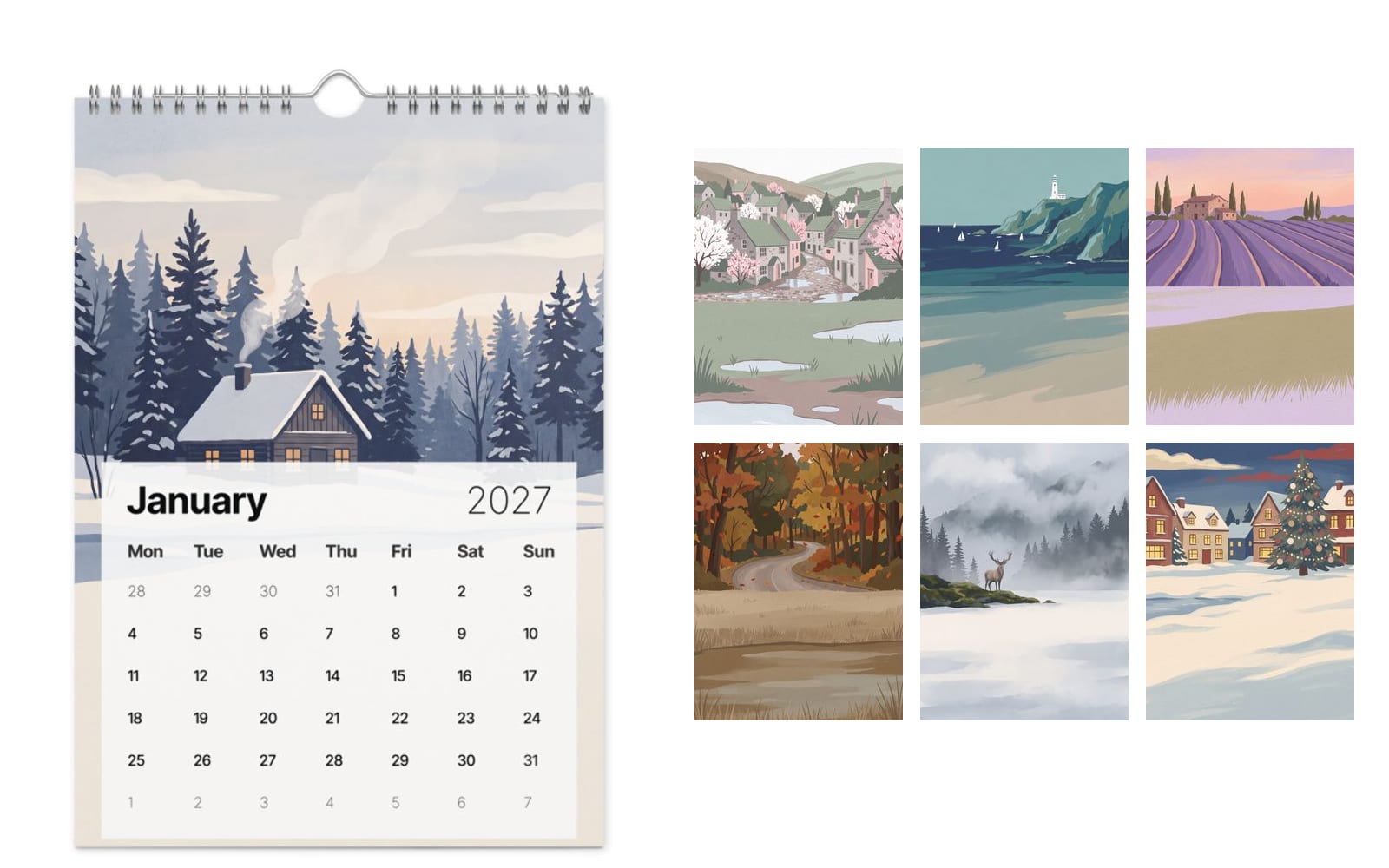
Each month is one tall picture filling the whole page, with the month's date grid printed over its lower half on a light panel. The cover is the picture alone. You choose the pictures: one for the cover and one for each month, or a single picture on all of them. The date grid is the printer's own, so it cannot hold birthdays or holidays. Prices are in US dollars and shown before you pay; see the pricing page.
Monday or Sunday
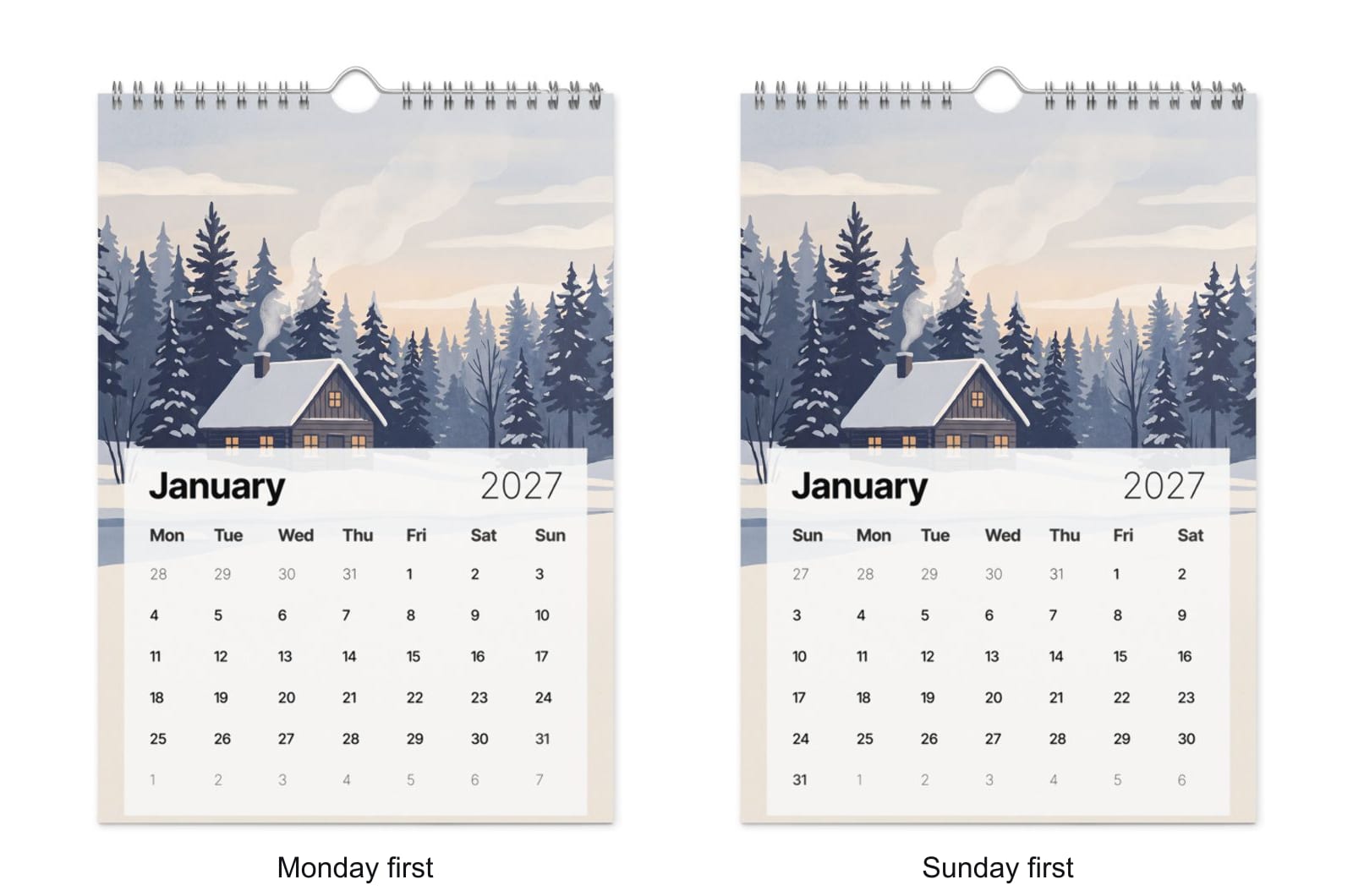
Next to the size you pick the first day of the week. Monday first is how most of Europe and much of the world reads a calendar, and it is picked to start with. Sunday first is the usual way in the United States, Canada, Israel and Japan. The pictures are the same either way; only the order of the days changes.
Choose twelve pictures
A good calendar is a set, not just twelve favorites. A few things make it feel planned:
- Follow the seasons. Snow in January, beaches in July, leaves in October. It sounds obvious, and it is what makes each page feel right when it turns.
- Keep one look. All phone photos, or all from one trip, or all AI pictures in one style. Mixing a sharp landscape with a dark indoor snapshot makes the dark one look worse than it is.
- Use upright pictures. The page is taller than it is wide, close to the shape of a phone photo held upright. A photo taken sideways loses most of its left and right.
- Keep the subject in the top half. The dates cover the lower half of each month, so faces, a house or a lighthouse belong above the middle, with sky, snow, grass or water below.
- Save a favorite for the cover. It is the first thing anyone sees when the calendar is unwrapped.
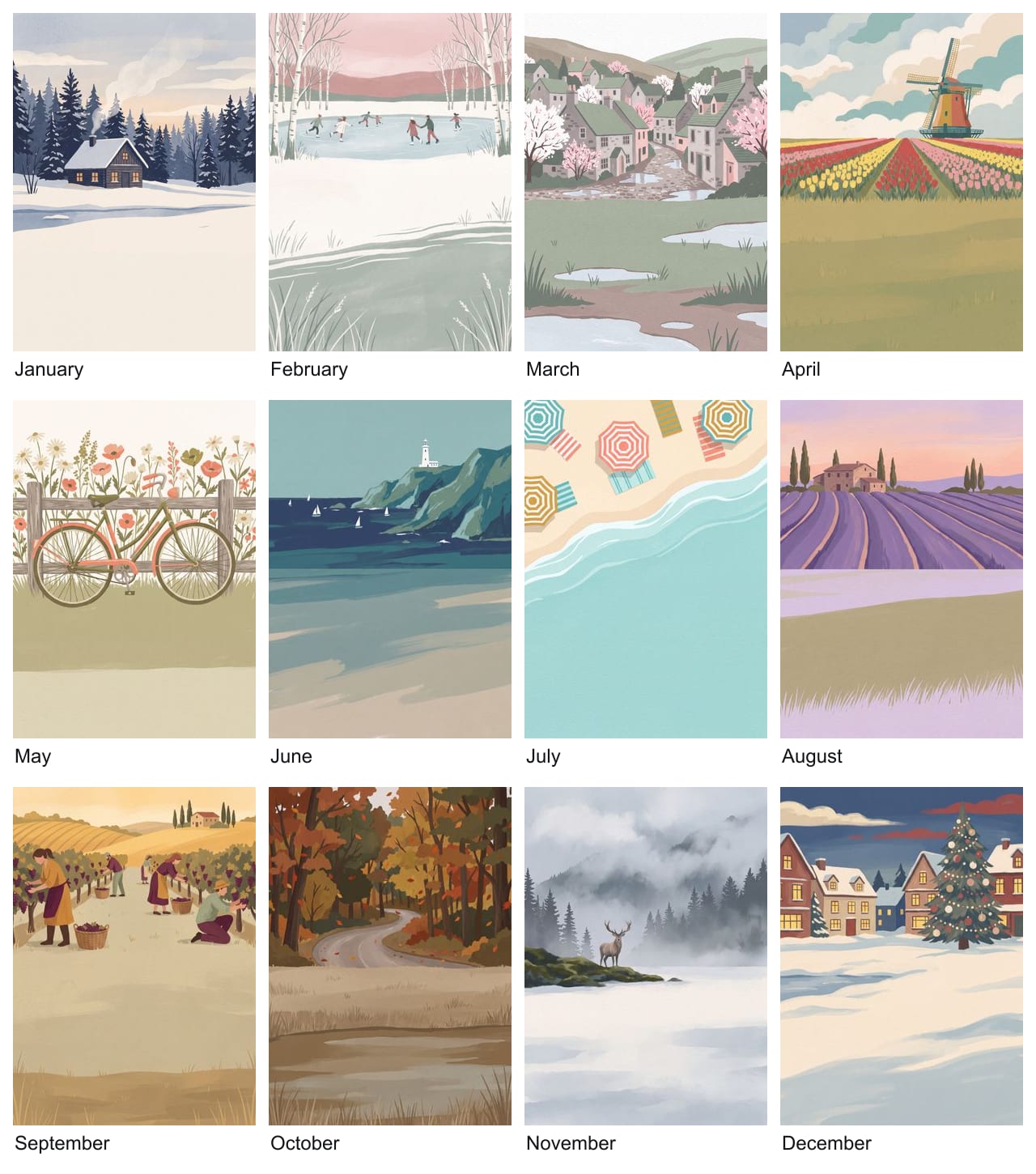
Or make them with AI
If your photos do not cover a year, or you want something more like an illustrated calendar, make the pictures. The months above came from twelve prompts that differ only in the scene and share the same ending, which is what keeps them looking like one set. January's was:
For each other month, swap the scene and its colors and keep the second half as it is. It asks for a tall picture with the scene in its upper half, which leaves room for the dates. The muted palette is not only a style: bright neon colors that glow on a screen come out darker in ink, and why AI art prints duller than your screen explains which colors to avoid. Pictures in paint-like colors print the way they look.
How big each picture needs to be
Each page is printed from a file of the whole page at 300 dots per inch: 2520 × 3507 pixels for A4 and 3664 × 5100 for 11″ × 17″. Your picture is stretched to fill it, so the question is how far it has to stretch.
| Picture width | A4 | 11″ × 17″ |
|---|---|---|
| 3000 pixels or more | Sharp | Sharp |
| 2000 to 3000 pixels | Sharp | A little soft up close |
| 1300 to 2000 pixels | A little soft up close | Likely blurry |
| Under 1300 pixels | Likely blurry | Likely blurry |
You do not need to work this out yourself: each month you add is checked, and one that is too small for its page is marked. Photos sent through messaging apps are often shrunk on the way, so use the original from your camera roll. The print size calculator does the same check for any size.
Make it, step by step
- 1Open the calendarStart at the calendar in the quick editor. Upload the picture for the cover, or make one with AI, then pick the size and whether weeks start on Monday or Sunday. On a phone this works the same as on a computer.
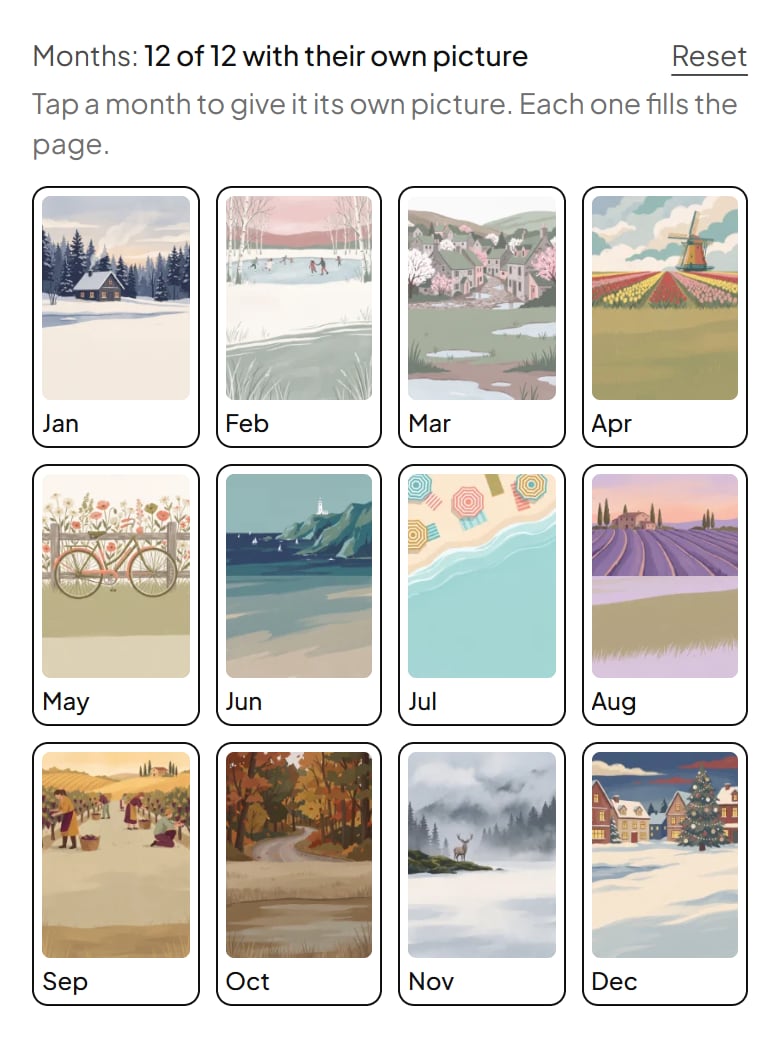
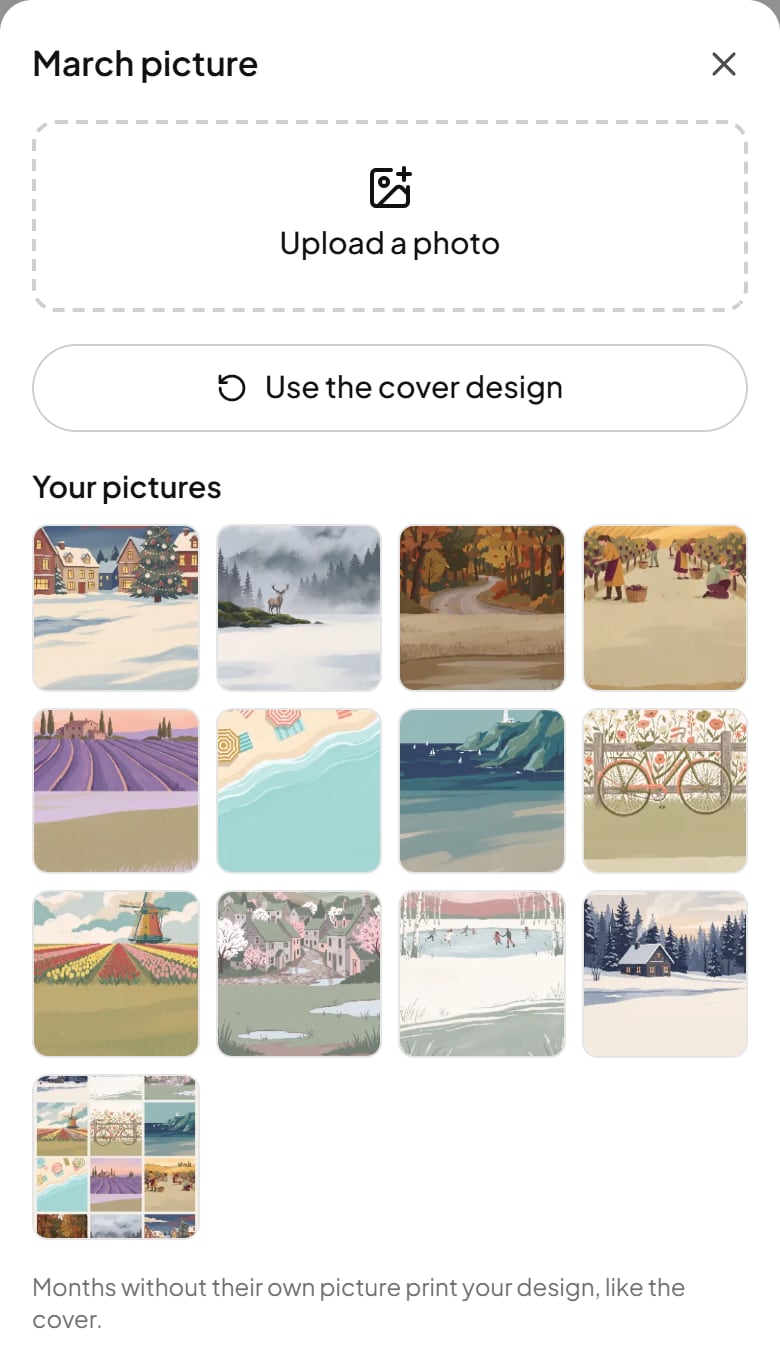
- 2Add the monthsUnder the price is a row of tiles, one per month. Tap “Add up to 12 photos at once” and pick your twelve: they go into January to December in the order you chose them. Or tap one month to give it its own picture.
- 3Check each pageEvery tile shows how its picture will be cropped to the page. A month marked with a small warning sign has a picture that may print soft. Tap a tile to change its picture, or to put the cover design back on that month.
- 4See the real thingUnder Adjust, “See a real photo of it” asks the printer for photos of your calendar: the cover, the cover hanging on a wall, and the first months with their dates.
- 5OrderContinue to checkout, enter the address it should go to (yours, or the person you are giving it to), pick shipping and pay by card.
The cover
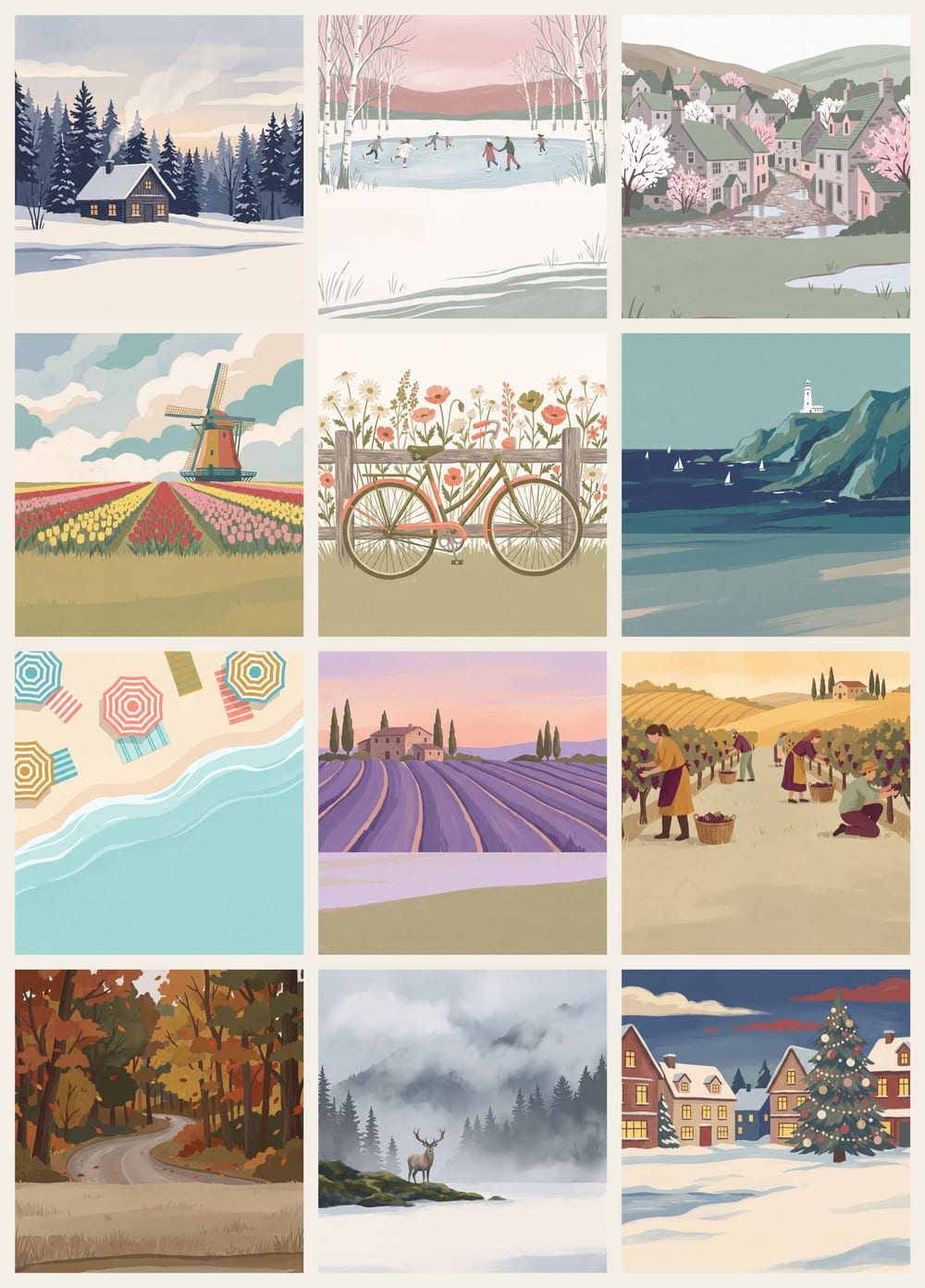
The cover is the picture you started with, and it fills the whole page with no dates on it. It can be a favorite photo, or all of the year at once: the cover for this guide is the twelve months as a grid, which tells whoever unwraps it what is inside.
If you only have one picture, that works as well: leave the months alone and it is printed on the cover and on every month.
When to order
Each calendar is printed when it is ordered, then shipped. At the start of November 2026 the printer's own estimates, from ordering to delivery with standard shipping, were:
| Shipping to | Delivery |
|---|---|
| United States | 10 to 11 days |
| Canada | about 9 days |
| Israel | 8 to 11 days |
| United Kingdom | 11 to 14 days |
| Germany | 14 to 15 days |
| Australia | 20 to 22 days |
December is the busiest month for printers and carriers alike, so those numbers grow as the holidays get closer. For a calendar that has to be on the wall on January 1, or under a tree, order in November or the first days of December.
As a gift
- Send it straight to them. The address at checkout can be theirs, wherever they live.
- Make one for each side of the family. The same calendar can be ordered more than once, or changed a little between orders: different photos for each grandparent.
- Order one for yourself first if it is for many people. One is a normal order, with no minimum.
Ready? Start your calendar, or read more about the 2027 wall calendar first.
Questions people ask
Can each month of the calendar have a different photo?
Yes. Every month and the cover can have a picture of its own. Add up to twelve photos at once and they go into January to December in order, or pick a picture for one month at a time. Months you leave alone print the cover picture.
What size should calendar photos be?
Each page is printed from a file of the whole page at 300 DPI: 2520 by 3507 pixels for A4 and 3664 by 5100 for 11 by 17 inches. An upright photo about 3000 pixels wide prints sharp at either size. Photos straight from a phone camera are large enough.
Can I add birthdays or holidays to the dates?
No. You choose the pictures; the date grid over the lower half of each month is the printer’s own, the same on every calendar.
Can the weeks start on Monday?
Yes. You choose Monday first or Sunday first when you pick the size. Monday first is picked to start with.
Can I order just one calendar?
Yes. There is no minimum: one calendar is a normal order, printed when you order it.
When should I order a calendar for Christmas or the new year?
Delivery takes about one and a half weeks in the United States and up to around three weeks to farther countries, and December is the slowest time of year. Order in November.